
B4 Your Backoffice
MAGNOLIA UNIVERSITY
BUSINESS BASICS · B4
Your Backoffice
Creators (reference; Affiliates may watch for orientation) · About 4.5 minutes
Watch the lesson
PRINTABLE FOR THIS LESSON
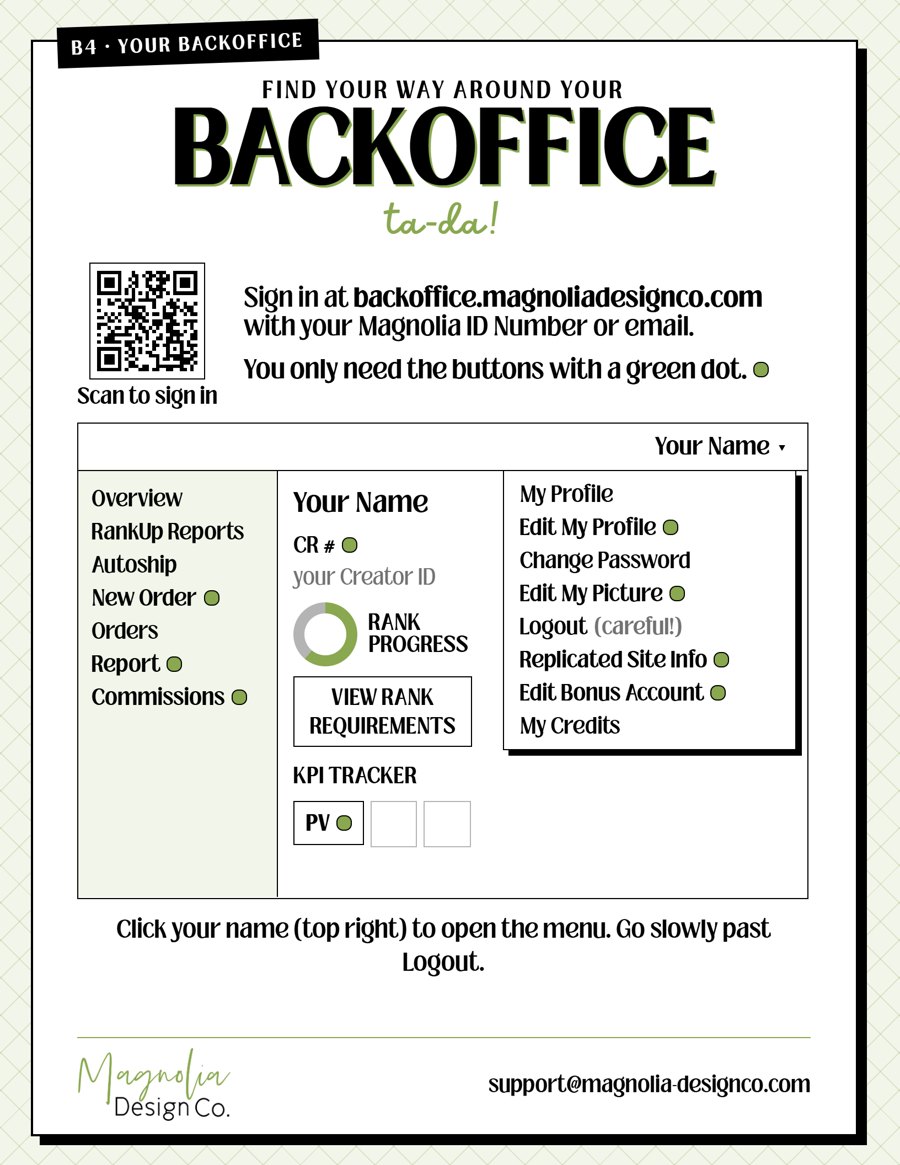 |
Backoffice Map Letter, 2 pages |
In this lesson you’ll learn
- How to sign in to your Backoffice
- The five spots you’ll use most
- Where to go when something looks confusing
Why this matters
Your Backoffice is your business home online. When you know your way around, you can check your progress in a minute and feel in charge. You don’t need to know every button. Just the few that matter.
The steps
- Sign in at backoffice.magnoliadesignco.com with your Magnolia ID Number or your email, plus your password. Forgot it? Click Forgot Password on the sign-in page.
- Spot 1: Overview. This is your home screen.
- Your profile card shows your name, your CR # (your Creator ID) and your RANK.
- The RANK PROGRESS ring fills as your PV grows. Use the arrows on either side to look at every rank. Tap VIEW RANK REQUIREMENTS to see what’s left for the next one.
- The KPI TRACKER is a row of tiles with your numbers for the month. Start with the PV tile. Tap any tile to see the details behind it. Use the month picker to look back at another month.
- PV means your own orders plus your customers’ orders, added together, in one month. Some screens print the same number as CV or PCV. It is the same number.
- Spot 2: New Order (left menu). Shop for yourself. It opens your shop in a new tab, signed in as you. Each item shows Your Price next to Regular Price. Not sure what to buy first? Look at Business Builder Items.
- Spot 3: Report (left menu). Your Quick Start progress and your sign-ups live here.
- Spot 4: Commissions (left menu).
- Summary shows your earnings. For this month, click View Projection. That’s your “how am I doing this month?” button. For past months, click View Statement.
- Your Gift Certificates shows the gift certificates you have to spend.
- Spot 5: the menu under your name (top right).
- Edit My Profile: your name, email, phone, link name and bio. Click SAVE. No message pops up; it jumps back to My Profile. That means it worked.
- Replicated Site Info: turns on your EMAIL ME button (see MU102). Logout sits right above it, so go slowly.
- Edit Bonus Account: how we pay you (see MU105).
- Edit My Picture: a square photo, 400 × 400, under 1 MB.
Keep it private
Your Backoffice has private details. Never share a screenshot that shows personal numbers or MY ALERTS.
See it on screen
Here’s what these screens look like. These come from a practice account, so every number is zero.
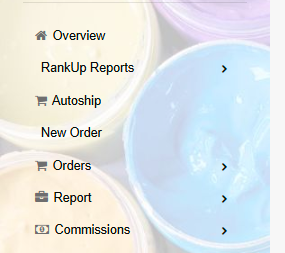
The left menu: Overview, RankUp Reports, Autoship, New Order, Orders, Report and Commissions.
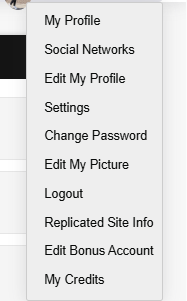
Click your name, top right, to open this menu. Logout sits right above Replicated Site Info, so go slowly.
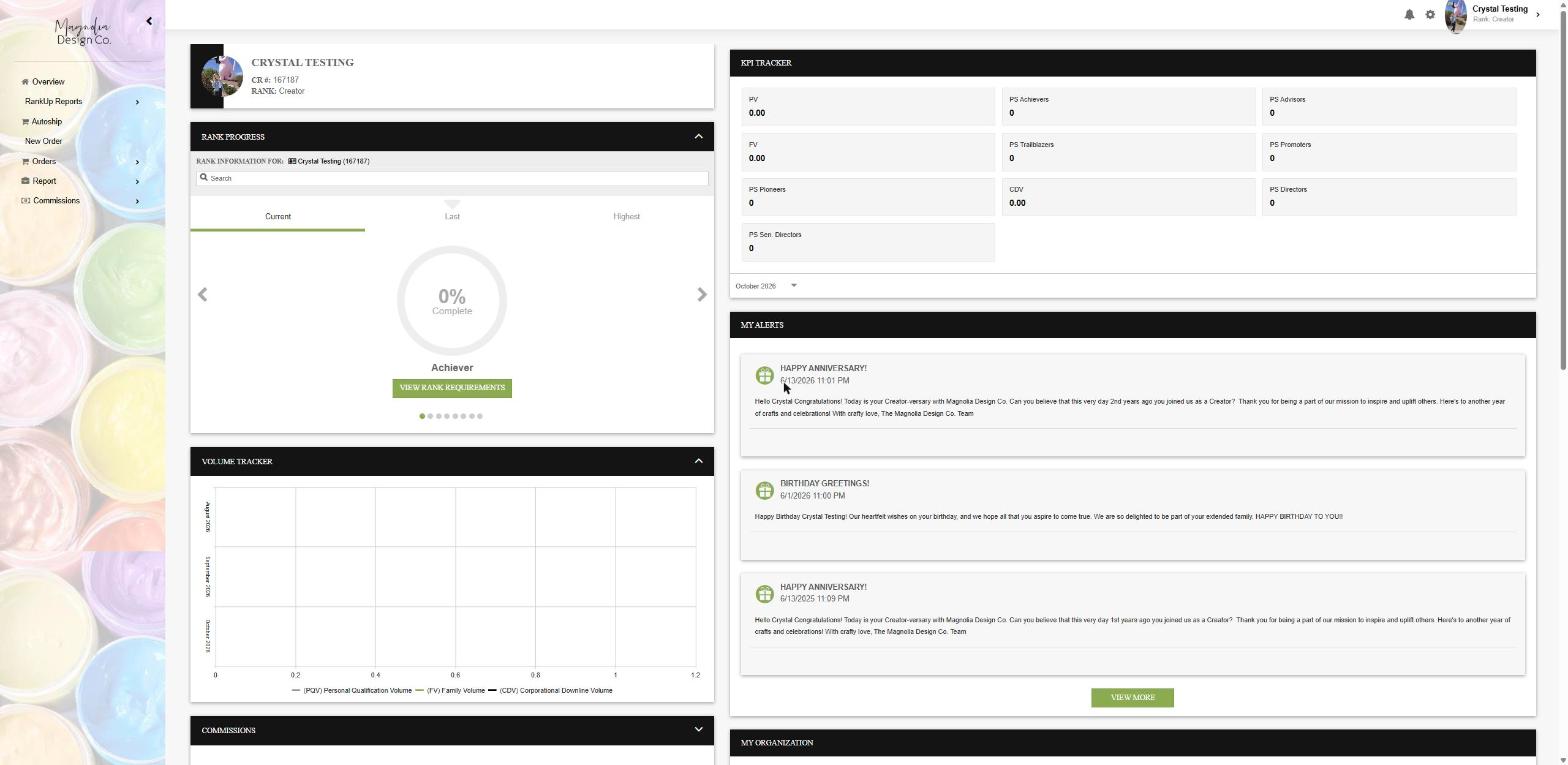
Overview is your home screen. Your profile card, RANK PROGRESS, VOLUME TRACKER and KPI TRACKER all live here.
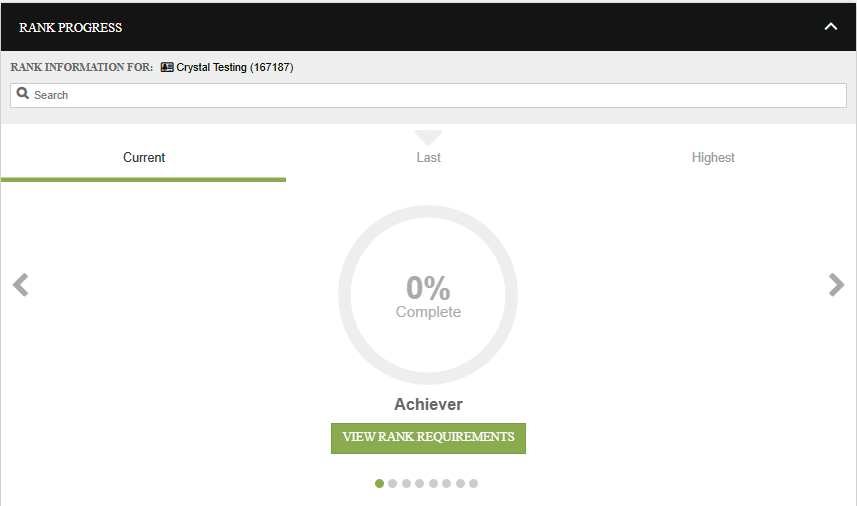
The RANK PROGRESS ring. Tap the arrows on each side to see every rank, and tap VIEW RANK REQUIREMENTS to see what’s left.
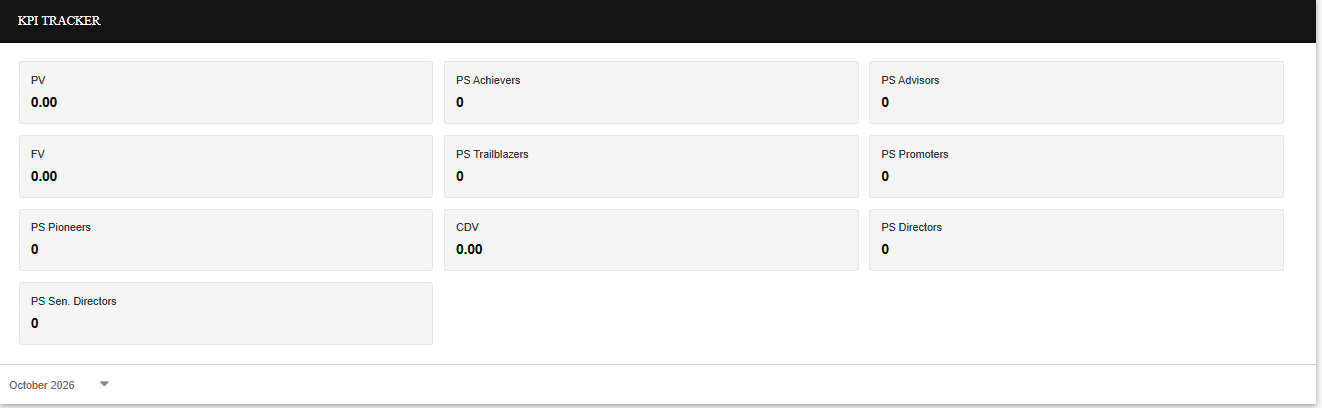
The KPI TRACKER. Your PV is the first tile. Every tile is clickable.
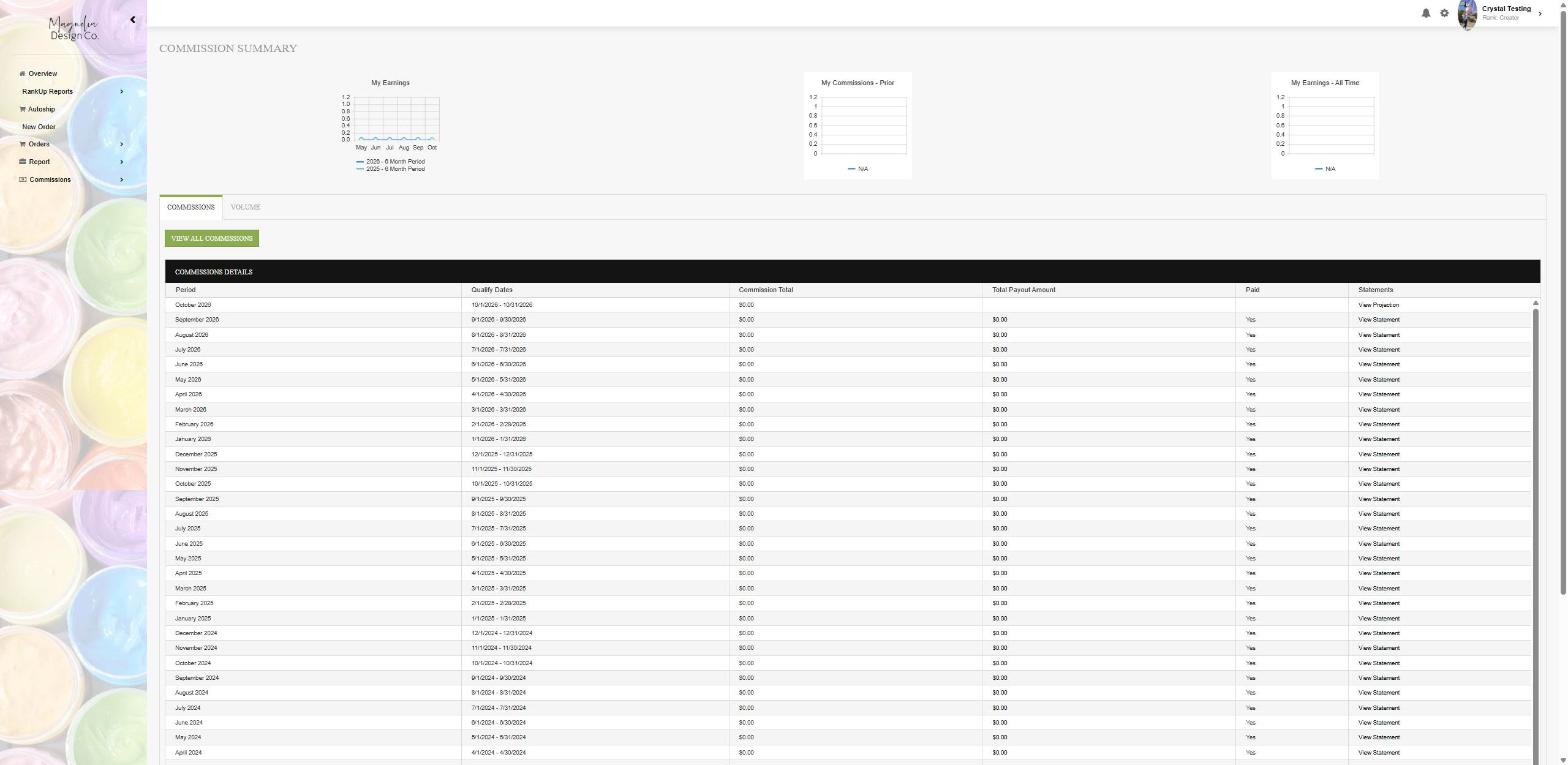
Commissions, then Summary. One row for each month.

This month’s row says View Projection: your “how am I doing?” button. Past months say View Statement.
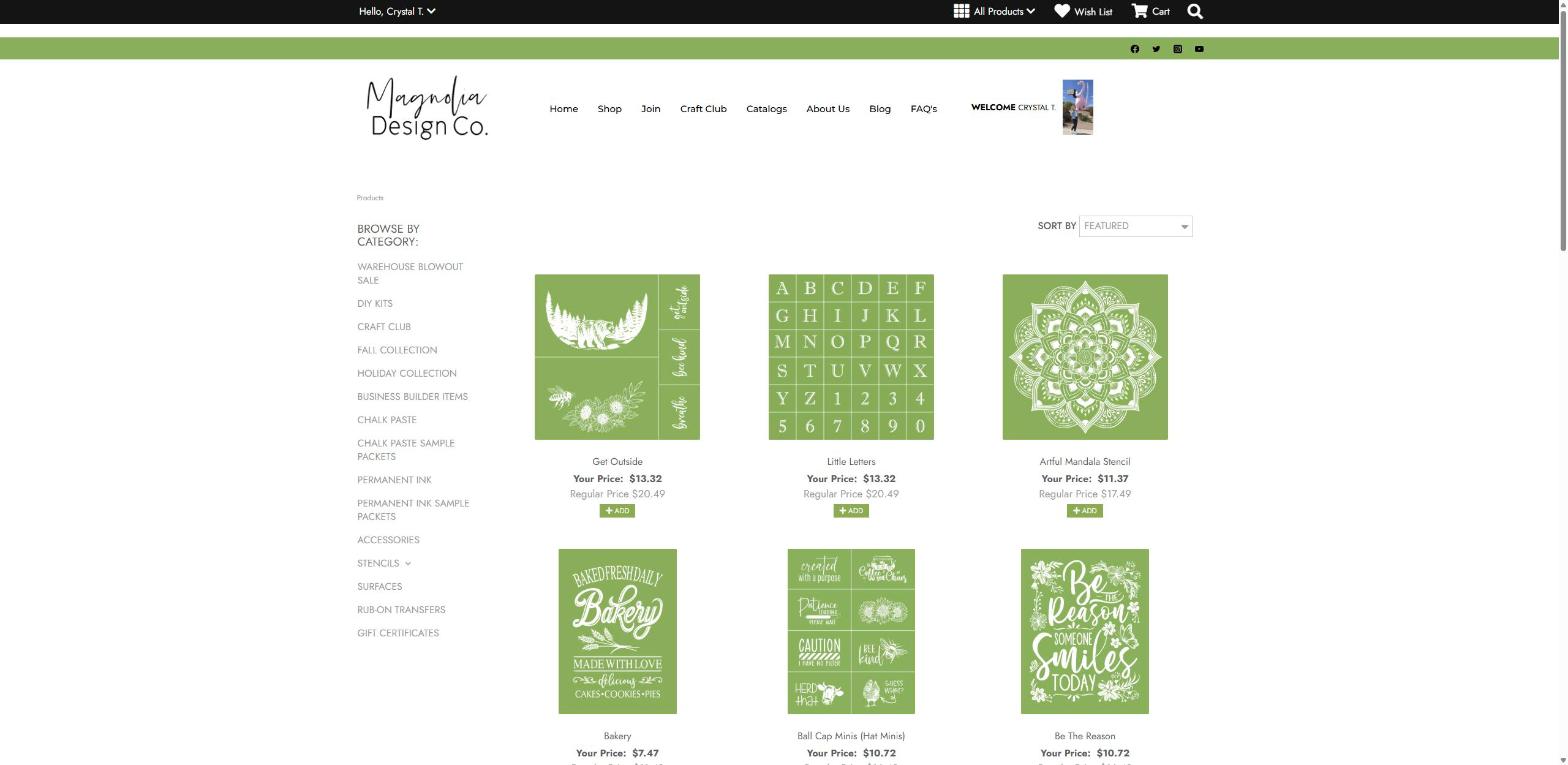
New Order opens the shop in a new tab, already signed in as you.

Every product shows Your Price next to the Regular Price. That’s your 35% off.
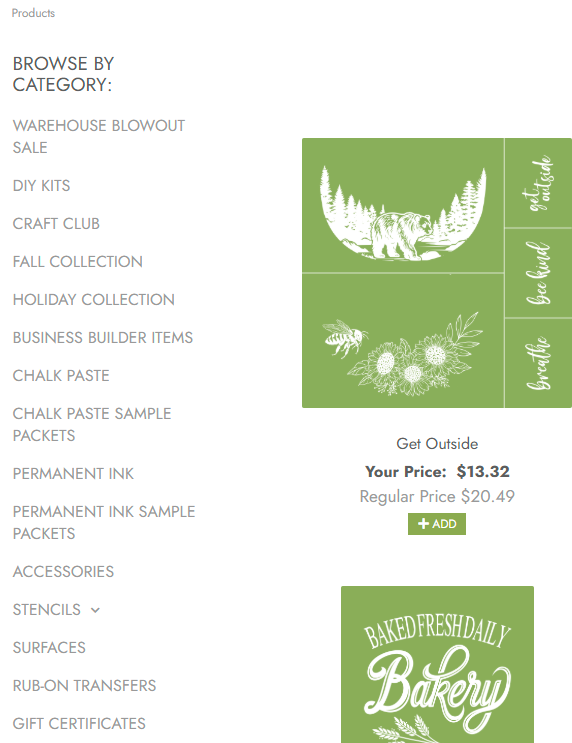
Business Builder Items, in the category list, is where samples and demo tools live.
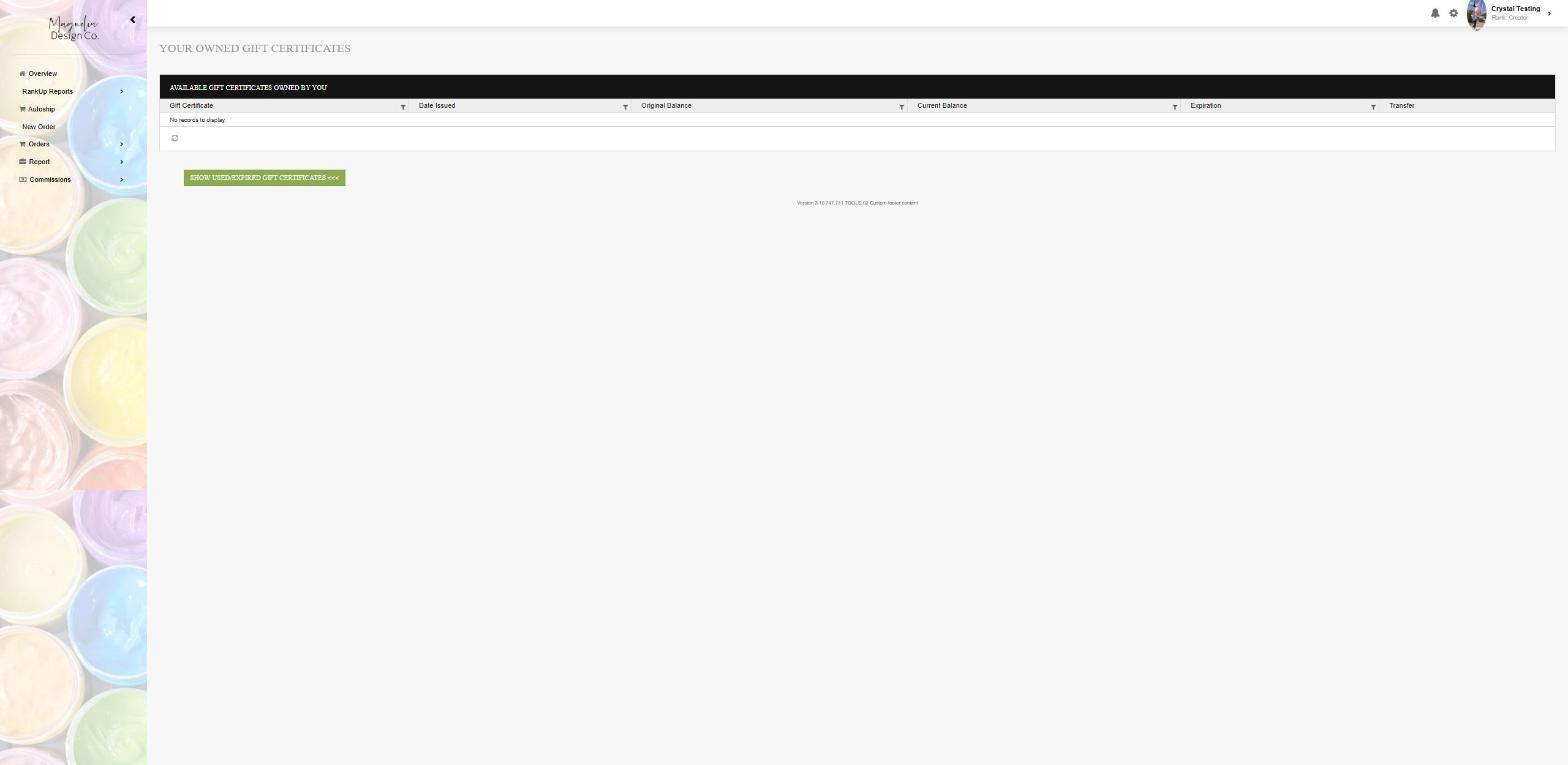
Commissions, then Your Gift Certificates. Each one shows its balance and expiration date.
Your one thing to do
Sign in and find the PV tile in your KPI TRACKER.
Check what you learned
Tap the answer you think is right. There’s no grade, so have fun with it!
1. Where do you sign in to your Backoffice?
- magnoliadesigncoconnect.com
- backoffice.magnoliadesignco.com
- Your welcome code page
Show the answer
2. Where do you go to shop for yourself?
- Settings
- Report
- New Order
Show the answer
3. What should a Backoffice screenshot never show?
- Personal numbers or MY ALERTS
- Your shop link
- A project you made
Show the answer
All done with this one?
Your progress shows on the Magnolia University page.