How to Find Your Shop Link & Turn On Your EMAIL ME Button
MAGNOLIA CONNECT · GETTING STARTED
Your shop link is how we know a customer is yours. Here’s where to find it, your Craft Club link, and how to turn on your EMAIL ME button.
Your two links
- Your whole-shop link: [your link name].magnoliadesignco.com
- Your Craft Club link: https://shop.magnoliadesignco.com/#/shop/from/[your ID number]?categoryID=29. It takes people straight to Craft Club.
Find your link name (Creators)
- Log in to your Backoffice at backoffice.magnoliadesignco.com.
- Click your name, top right. Choose Edit My Profile. The screen at the top says My Profile – Edit.
- Look for Replicated Site URL. That’s your link name. You picked it when you joined. Look at it, but leave it as it is.
Find your Creator ID
Click Overview in the left menu. Your profile card shows your name, then CR #. The number beside CR # is your Creator ID. It’s also on My Profile.
Turn on your EMAIL ME button (Creators)
Your EMAIL ME button lets a curious customer reach you right from your shop page. It starts out turned off.
- Click your name, top right. Choose Replicated Site Info. Go slowly here. Logout sits right above it, and it’s easy to tap by mistake. If that happens, just sign back in.
- You’ll see nine rows. Each row has Default, Hide and Override. Everything except Name starts on Hide.
- Find the Email row. Change it from Hide to Default.
- Click Save Changes, bottom left. You’ll see “Replicated Site information updated successfully.”
See it on screen
Here’s what these screens look like. These come from a practice account, so every number is zero.
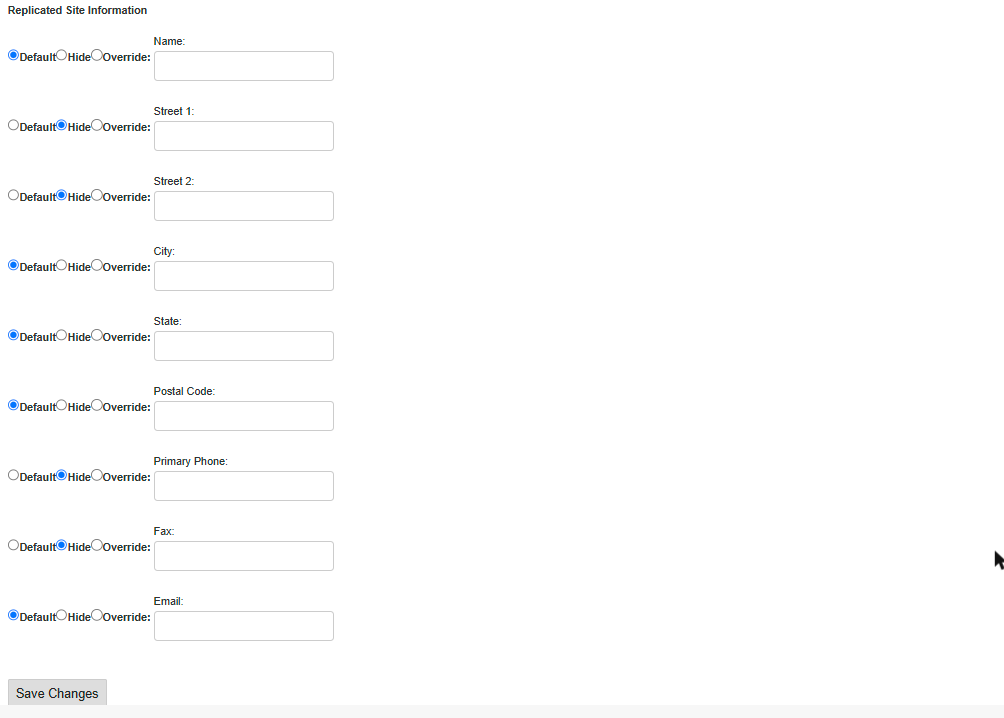
Replicated Site Info has nine rows, each with Default, Hide and Override. On a new account, everything except Name starts on Hide. (This practice account already has a few rows switched on.)

Switch the Email row to Default, then click Save Changes.
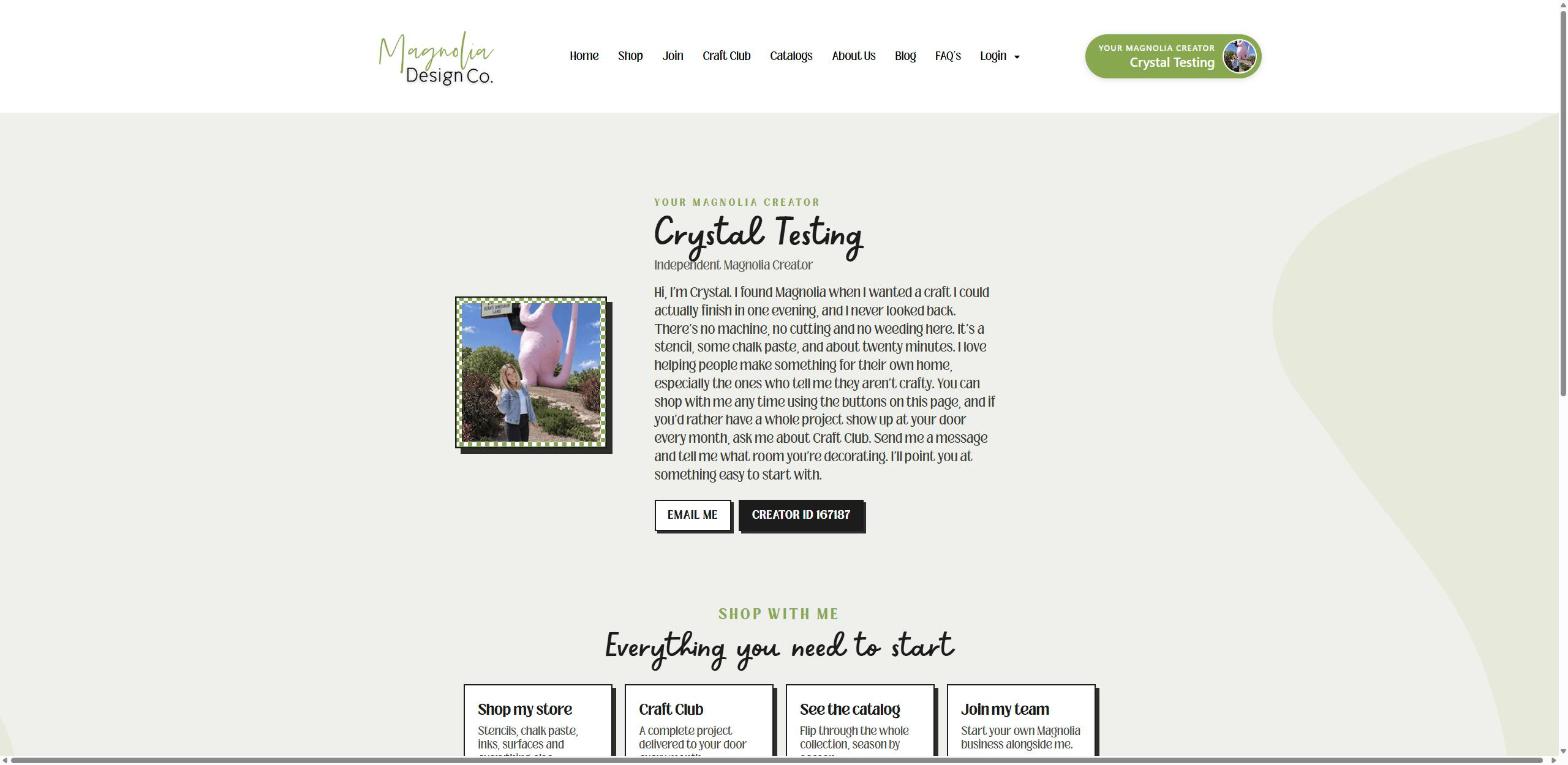
Your About Me page, with the EMAIL ME button turned on.
Test your links
- Open your whole-shop link on your phone. At the top it says “You’re Shopping with:” and your name.
- Add /about-me to the end of your link. You’ll see your bio, your EMAIL ME button and your CREATOR ID.
Affiliates
Your welcome email lists your Affiliate ID and your shop link. Keep that email somewhere safe. Your Craft Club link works the same way: your shop link with your ID number and ?categoryID=29 on the end.
Tip: save both links in a phone note, or set up a text shortcut, so typing a word like “ccshop” fills in the whole link. Then use your link every single time you share.
Want the full walkthrough? Watch MU 102 Your Shop Link in Magnolia University.
Still stuck? Email support@magnolia-designco.com or call (970) 404-5383, Monday to Friday, 12–4 PM Eastern.